Loading
MaxLinc NFC App
Scan your NFC loggers directly to the cloud. Download the official app for your device.
1. Hardware Activation
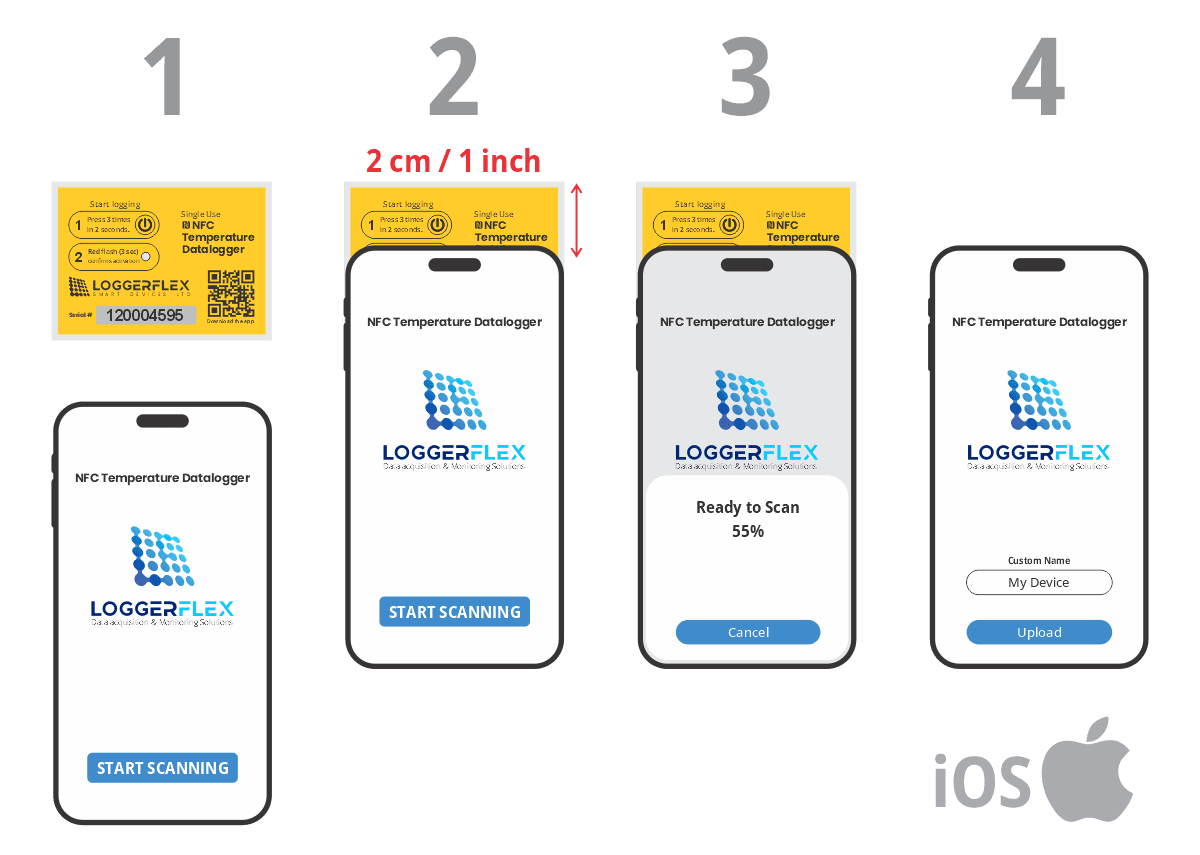
Action: Press the power button 3 times within 2 seconds.
Confirmation: A red flash lasting 3 seconds confirms the tag is activated.
Delay: The tag waits 10 minutes before taking the first reading - giving you time to place it in its final location, like refrigerated transport.
Specs: The tag captures temperature every 10 minutes and holds 4000 records (about 4 weeks). When full, it overwrites the oldest records. Battery life is 2 to 3 months.
3. Scanning Process
Place the tag landscape on a flat surface like a table.
iPhone Flow
Place the top edge of the iPhone over the tag with a few centimeters of overlap, then press the Start Scanning button.
Android Flow
The app automatically enters Scan Mode. Place the top half of the phone over the tag - best placed about 2 cm (1 inch) below the top of the phone.
Reading Rules
Do not move the phone or tag. A progress bar shows the percentage of logs extracted. If disrupted, repeat the process.
2. First-Time App Setup
Settings: Select your preferred language and choose a dark or light theme.
Cloud Link: Enter a valid email address already registered on your free MaxLinc cloud account.
Simplicity: No login or password is required in the mobile app - the email simply routes scanned data to the cloud. The person scanning does not need to be the account owner.
4. Cloud Reporting
Sync: Once the reading reaches 100%, assign an optional name to the sensor and press Upload to send data to the cloud. Make sure your phone is connected to the internet.
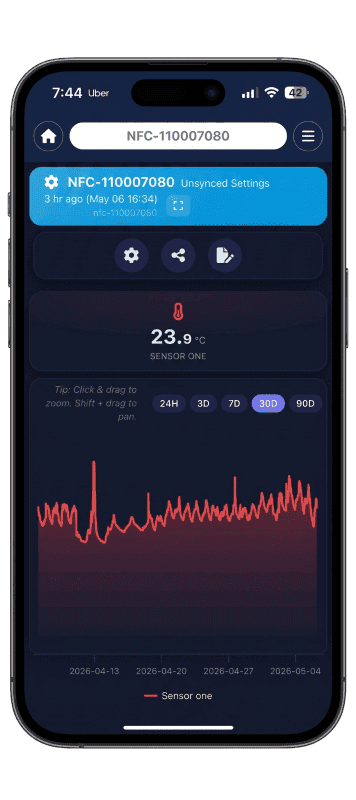
Reports: To view data, the account owner logs into app.maxlinc.com, opens the sensor card, goes to Advanced Reports, and exports PDF or Excel reports for transport, vaccine safety, or daily averages over any interval.